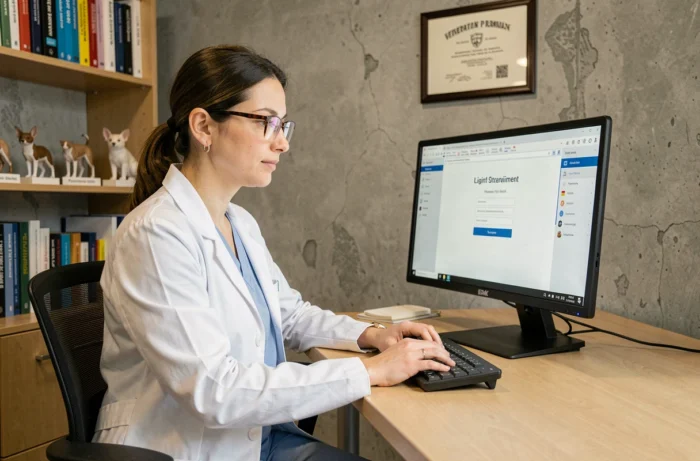
GM Vet 1 operates entirely in SaaS mode: the first connection requires no local installation, but it assumes that the administrator of the organization has created the user account beforehand. Without this prior step, the practitioner or assistant attempting to connect encounters an authentication error, without an explicit message. We detail here the actual blocking points and the settings to validate even before opening the browser.
Technical prerequisites before connecting to GM Vet 1
GM Vet 1 relies on a web browser. The software does not distribute a heavy client, which simplifies deployment but shifts the responsibility to the workstation side. An outdated browser or a poorly configured proxy is enough to cause a blank screen when loading the interface.
We recommend checking three elements before any connection attempt:
- The browser must be up to date (maintained versions of Chrome, Firefox, Safari, or Edge are suitable). Browsers integrated into some older operating systems regularly cause issues with SSL certificates.
- Third-party cookies must be allowed for the gmvet domain; otherwise, the session does not persist after authentication, and the software redirects in a loop to the login page.
- If the clinic uses a firewall or DNS filtering, the GM Vet connection domain must be whitelisted. A network blockage often manifests as a timeout without an error message.
These checks take a few minutes and prevent the majority of support tickets related to the first connection. A complementary guide details the GM Vet 1 login on Animalya with step-by-step screenshots.
Creating the user account and assigning rights in GM Vet
The connection systematically fails if the account has not been created by a user with administrator rights. GM Vet 1 does not offer self-registration: each access is provisioned from the internal management panel.
The administrator creates the user, provides the professional email address, and assigns a rights profile. This profile determines the modules visible after login. A veterinary assistant does not need access to financial indicators, and a substitute should not modify the organization’s settings.
Typical profiles and access scope
GM Vet distinguishes several levels of rights. The role conditions not only the accessible functionalities but also the ability to unlock certain sensitive tabs like the Pilepoils settings. A poorly assigned profile blocks the user without them understanding why: the tab appears grayed out or simply does not display.
Before the new employee’s first connection, the administrator must validate that the assigned role corresponds to the actual tasks. Correcting a profile afterward is possible but creates confusion in the first days.
Procedure for first authentication on GM Vet 1
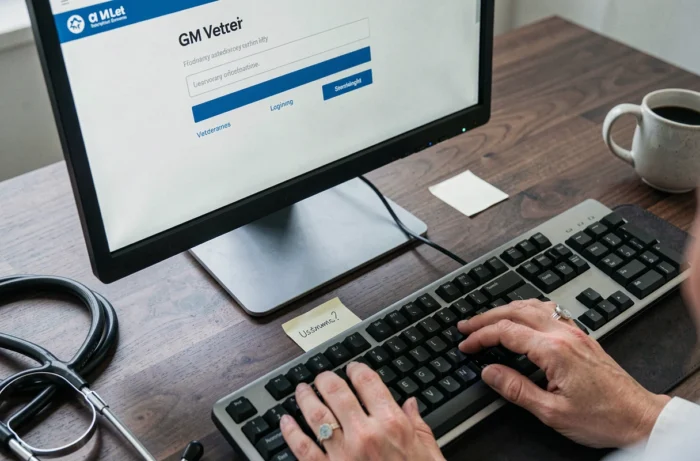
Once the account is created, the user receives their credentials (usually via internal email or direct transmission from the administrator). The login page requests the email address associated with the account and the password defined during creation.
The initial password must be changed during the first session. GM Vet does not always enforce this change automatically, which means a temporary password may remain active if the user does not take the initiative to change it in the account settings.
Forgotten password or inaccessible account
None of the official documentation precisely describes the password recovery procedure. In practice, two scenarios arise:
- If the email address is correct and the account is active, the reset function sends a temporary link. Check the spam folder if the message does not arrive within minutes.
- If the email address provided during creation is incorrect or if the account has been disabled, only the administrator can intervene. The user has no means to resolve the situation independently.
This point deserves to be anticipated: we find that organizations that centralize access management to one person often find themselves blocked in the absence of the administrator.
Post-connection settings: what conditions daily use
Connecting is not enough to make the software operational. Several settings must be made during the first session for scheduling, online appointment booking, and member synchronization to function correctly.
Activating synchronization between the user and the Pilepoils back-office is the first action to take. Without this synchronization, appointment slots do not appear on the client platform, and the practitioner remains invisible for online appointment booking.
Activities and consultation reasons
The configuration of activities (general consultation, vaccination, surgery, emergency) and associated reasons determines what clients see when booking online. A poorly worded reason or an inappropriate time slot duration degrades the client experience and generates appointments that do not align with the actual schedule.
Each activity must be added manually to the schedule of the concerned practitioner. A common mistake is to create activities in the general reference without subsequently assigning them to team members. The result: empty slots on the client side while the veterinarian thinks everything is configured.
Account security and best connection practices
GM Vet 1 operates via a browser, which means that the security of the session depends as much on the software as on the workstation used. Never save the password in a shared browser among several collaborators remains the basic rule, often ignored in clinics.
Logging out at the end of the session closes the authentication token. Leaving a session open on a publicly accessible workstation exposes patient data and the organization’s settings. On shared fixed workstations, using private browsing for each session limits this risk without additional constraints.
Access management does not stop at the first connection. When an employee leaves the organization, the member’s desynchronization and account deactivation must be carried out on the same day to cut off access to the clinic’s data.